Understanding Stacking Contexts
Understanding Stacking Contexts
As web developers, we’re familiar with various tree structures in the browser the DOM tree, the layout tree, and the render tree. But did you know there’s another hidden tree that plays a crucial role in how elements are visually layered? It’s called the stacking context tree.
We’ve all dealt with overlays in some form modals, tooltips, dropdowns, and popups. These elements are often deeply nested in the DOM, and without special handling, they can end up being visually hidden behind parent or sibling elements. To fix this, we usually reach for position and z-index to bring them to the front.
So while z-index seems like the go-to fix, it doesn’t always do what we expect because stacking context rules are working behind the scenes.
<body>
  <h1 id="title">Stacks</h1>
  <div id="header"><b>Header</b></div>
</body>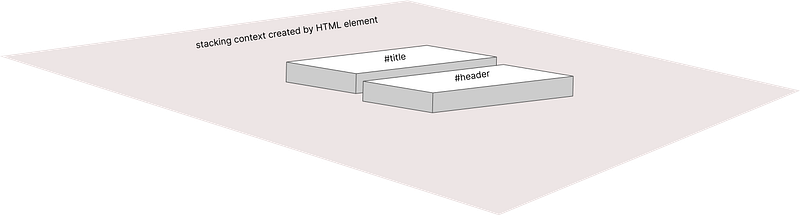
default stacking context
What Is a Stacking Context?
A stacking context is like an invisible box that contains a set of layers (elements and their descendants). Within that box, every element’s paint order who sits on top of whom is determined by its z-index (or by other context-forming properties).
- By default, the browser starts with one stacking context: the root (
<html>). - New stacking contexts are created whenever an element meets certain criteria (e.g. has a
positionother thanstaticwith az-indexvalue, atransform,opacityless than 1, etc.).
<h1 id="title">Stacks</h1>
<div id="header"><b>Header</b></div>
<div id="content" style="position: relative; z-index: 2;">
    <p>Open the dialog</p>
</div>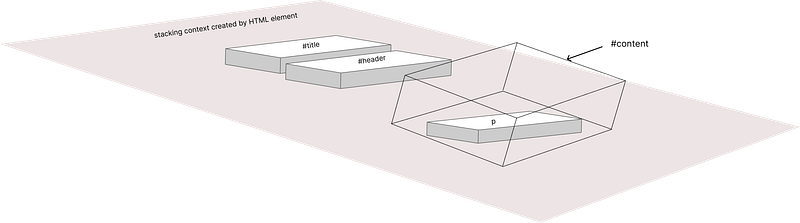
stacking context created for div#content
No matter how huge you set up an element’s z-index, it can only reorder within its own stacking context it can’t “escape” that invisible box and appear above elements in a different context.
How z-Index Behaves
- Imagine three sibling elements A, B, and C inside the same stacking context. By default, the browser paints A, then B, then C, so C appears on top if they overlap.
- If you want A or B in front, you give it a higher
z-indexthan C. - But if A, B, and C each live in different stacking contexts (say, inside three separate positioned parents), boosting A’s child
z-indexwon’t help it leap over C’s parent context you’d have to adjust the parent’sz-indexto reorder those contexts themselves.
This relationship is a bit like function scoping in code: a variable declared inside a function can never be accessed outside it, no matter how you rename it. Likewise, a high z-index inside one stacking context can’t punch through to another.
overlap vs stacking
Just because two elements overlap doesn’t mean you control which one appears on top that’s what stacking (and stacking contexts) are for.
There are several ways to make an element appear in front of another visually
- Position-based overlapping When you use
position: relative,absolute, orfixed, you can move elements out of the normal flow and manually place them on top of others especially when combined withz-index. - transform Applying a transform like
transform: translate()orscale()can visually shift an element, causing overlap. - Layout tricks (
grid,flex) CSS Grid and Flexbox can rearrange items visually, including placing one on top of another usingz-index. However, using grid or flex alone doesn’t create a new stacking context. - Negative margins Negative margins can pull elements into each other’s space, creating overlap.
- **Floating ** Floating takes an element out of normal flow and lets other content wrap around it.
However, not all of these methods affect stacking order in the same way.
For instance, using negative margins or floats can make elements visually overlap, but they don’t create a new stacking context. So even if two elements appear on top of each other, their actual stacking order is still controlled by the stacking context tree and not just their DOM position or layout tricks.
<div class="rot">
    <div id="content" style="position: absolute; z-index: 2;">
        <p class="abs" style="z-index: 101;">Open the dialog</p>
        <div id="tooltip" class="abs" style="z-index: 100;">
            <p>Tooltip</p>
        </div>
    </div>
    <div id="content-2" class="move" style="position: absolute; z-index: 1;">
        <p class="abs" style="z-index: 101;">send the package</p>
        <div id="tooltip-2" class="abs" style="z-index: 999999;">
            <p>Tooltip 2</p>
        </div>
    </div>
</div>
Try out the full example on CodePen
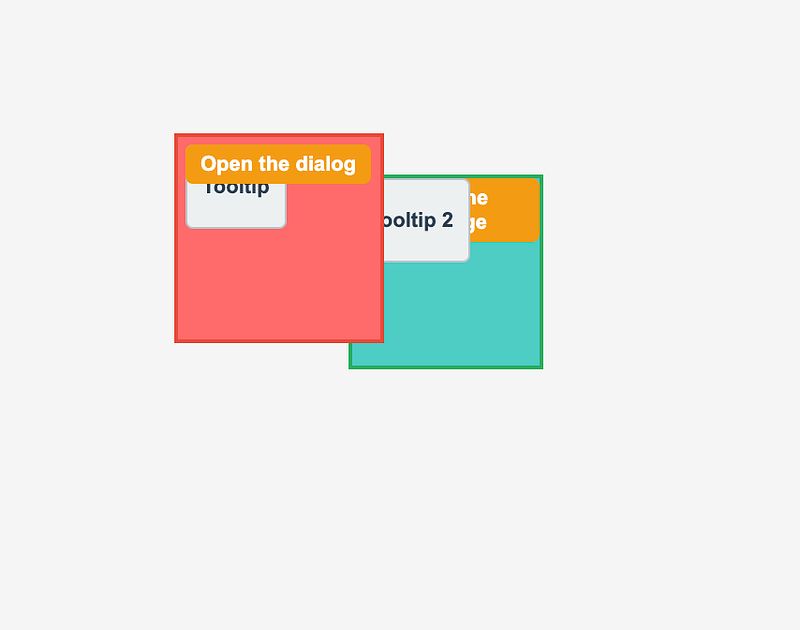
Output in the browser
Illustration
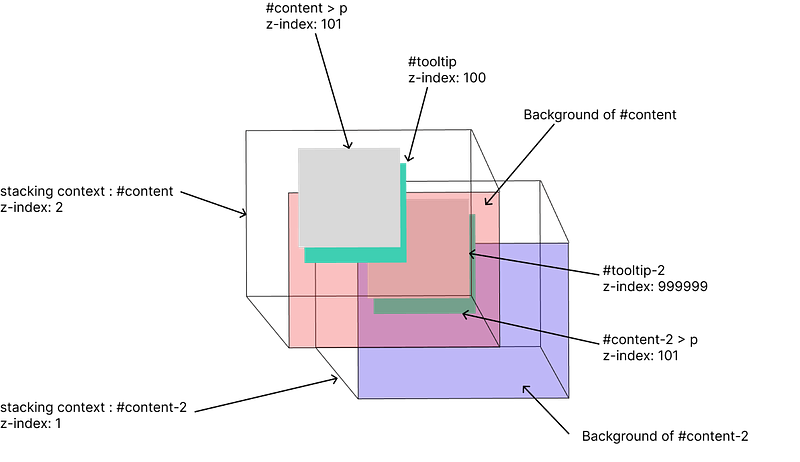
illustration of above DOM
Real-World Analogy
Think of two card deck boxes:
- Each box holds its own deck of cards (its “layers”).
- You can shuffle cards within a box however you like that’s like reordering layers with
z-index. - But if you want one box to sit on top of the other, you move the boxes themselves that’s like giving the parent elements a higher
z-indexto reorder whole stacking contexts.
Or, if you’ve ever used Photoshop:
- A group is like a stacking context: it contains multiple layers.
- You can reorder layers inside a group freely.
- To move an entire group above another group, you change the group’s order just like adjusting a parent’s
z-index.
To understand why stacking contexts exist, let’s first look at what happens when there is no stacking context involved.
<div id="main-content">
  <h2>Welcome to Stacks</h2>
  <p>
    Stacks is a place to learn and grow. We are a community of learners
    who are passionate about learning and growing.
  </p>
  <button
    id="fm-button"
    onclick="document.getElementById('sidebar-content').requestFullscreen()"
  >
    fullscreen mode
  </button>
</div>
<div
  id="custom-modal"
  style="margin-top: -50px; background-color: rgb(61, 79, 200)"
>
  <h2>Custom Modal</h2>
  <p>This is a custom modal</p>
</div>
overlapping effect without stacking context
Here, the .custom-modal overlaps the content above it by using a negative top margin. What we expected was for either #main-content or #custom-modal to appear fully on top one clearly above, the other fully hidden behind.
But what we actually get is a weird blend some parts of #main-content (like the button) appear between layers of #custom-modal. It feels like they’re interleaved.
Why is that?
The Default Paint Order
By default, the browser paints elements in DOM order. Elements that come later in the DOM (or are nested deeper) usually get painted on top if overlapping occurs. This behavior also influences how backgrounds and child elements are layered.
But here’s the key part:
The browser paints in the following rough order:
- Background of
#main-content - Children of
#main-content(like the heading, paragraph, and button) - Background of
#custom-modal - Children of
#custom-modal(like its heading and paragraph)
When the browser paints an element’s background, it may not completely overwrite pixels that are already occupied by previously painted child elements especially if all of them are part of the same stacking context.
So in our case:
- The
#custom-modaland#main-contentare in the same stacking context. - That means the browser doesn’t treat
#custom-modalas a clean, separate “layer” on top. - Instead, everything just gets painted sequentially, layer by layer.
- This is why the
#fm-buttonwhich was already painted earlier can “peek through” the modal’s background during step 3.
It’s an illusion of broken layering but really, it’s just a side effect of how things get painted in the absence of stacking isolation.
Fix for above problem
If you want the modal’s background to fully cover everything beneath it, what you’re actually looking for is a new stacking context.
Stacking contexts give you fine-grained control over layering, not just overlapping. They let you control paint order intentionally instead of relying on DOM order or layout hacks like margins and floats.
If #custom-modal had a position: relative and a z-index, it would create its own stacking context and reliably appear above everything in #main-content.
Lets create a stacking context for the div#custom-modal element. Easy way to do that is by using isolation: isolate css
<div
  id="custom-modal"
  style="margin-top: -50px; background-color: rgb(61, 79, 200); isolation: isolate"
>
  <h2>Custom Modal</h2>
  <p>This is a custom modal</p>
</div>
stacking context brings the element to the front
Real-world problem: Confetti appears above the dialog
Here’s a problem I encountered while triggering confetti from within a modal dialogue.
<div id="content">
  <div id="main">
    <div id="main-content">
      <h2>Welcome to Stacks</h2>
      <p>
        Stacks is a place to learn and grow. We are a community of learners
        who are passionate about learning and growing.
      </p>
      <button
        onclick="openDialog()"
      >
        open dialog
      </button>
    </div>
    <div
      id="custom-modal"
      style="padding: 20px; background-color: rgb(210, 214, 143); position: absolute; top: 50%; left: 50%; display: block; transform: translate(-50%, -50%);"
    >
      <h2>Custom Modal</h2>
      <p>This is a custom modal</p>
      <button onclick="closeDialog()">finish</button>
      <button onclick="boom()">boom</button>
    </div>
  </div>
</div>
Explore and interact with the full version here
When the “boom” button is clicked, it calls the confetti() function from the canvas-confetti library. But instead of confetti appearing behind the dialog, it appears above it covering the modal content like headings and buttons. This is not what we want.
The desired layer order is:
[Overlay / Background]
    ↓
[Confetti Canvas]
    ↓
[Dialog Box (#custom-modal)
But what actually happened:
[Overlay / Background]
    ↓
[Dialog Box]
    ↓
[Canvas (Confetti)] ← on top of everything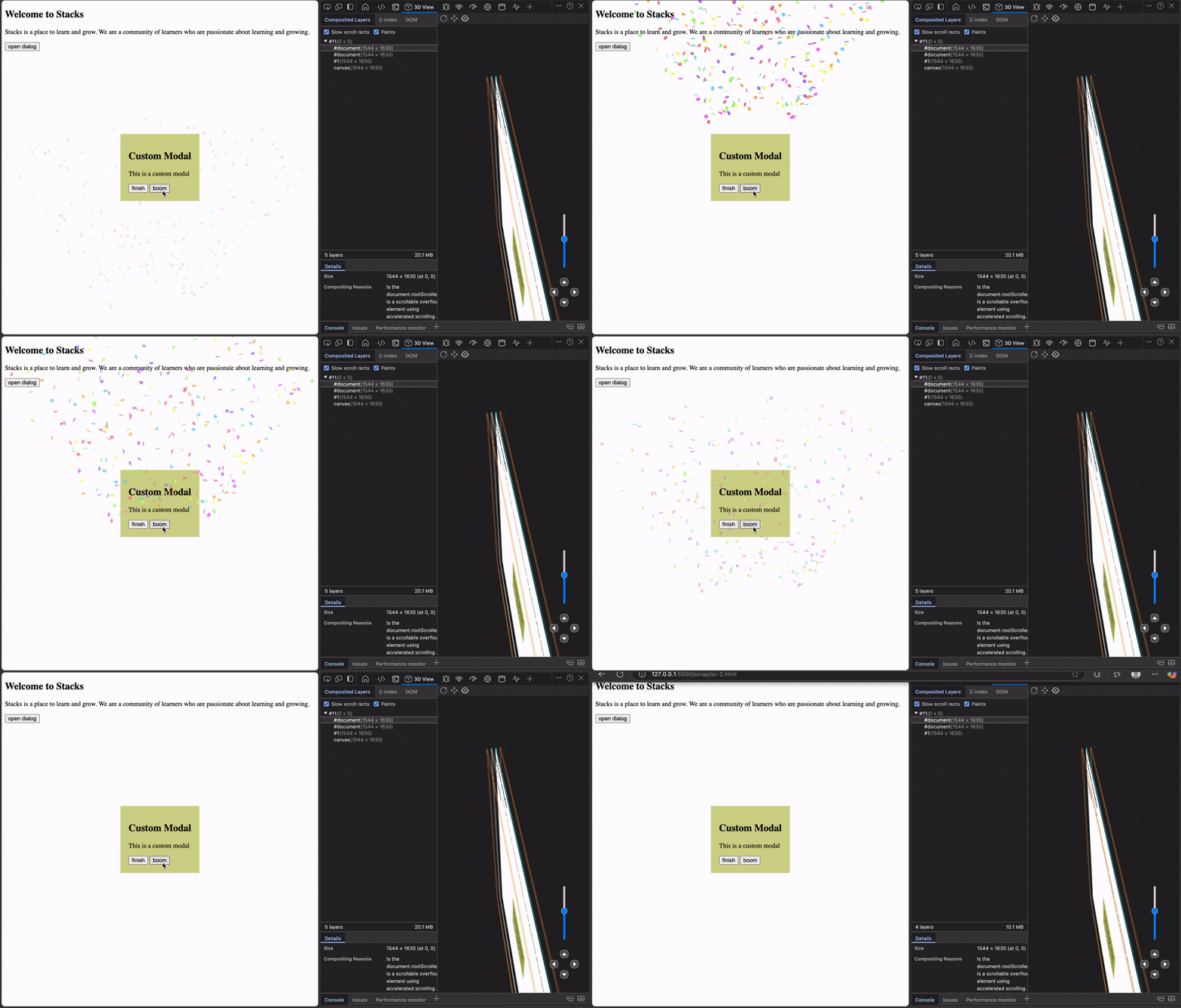
The confetti library creates a <canvas> element and appends it to the DOM, often at the root level (<body>). That canvas is styled with:
position: fixed;
z-index: 100;
Since it comes later in the DOM and has a high z-index, the canvas gets painted on top of other content, including the modal.
The browser uses z-index stacking order to decide the paint order when elements visually overlap. Because the canvas and the modal are not in the same stacking context, the modal cannot appear above the canvas unless its parent stacking context has a higher z-index.
This is not a rendering bug it’s how stacking and z-index are supposed to work.
How to fix it
To fix this, we need to make sure the #custom-modal appears above the canvas.
Since the canvas uses z-index: 100, you can assign a higher z-index to the modal, for example:
#custom-modal {
  position: absolute;
  z-index: 101;
}
Now the modal will appear above the canvas, as expected.
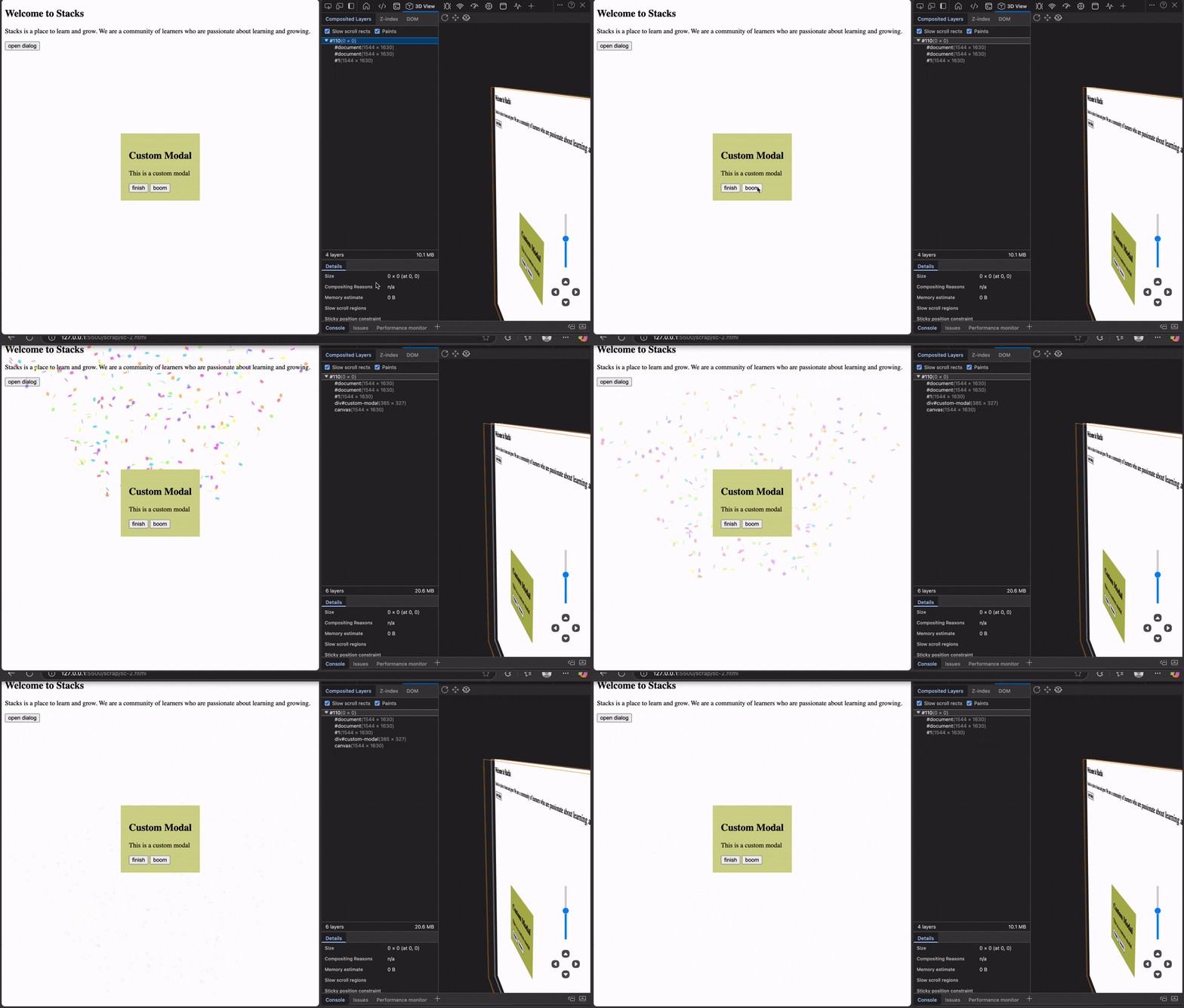
Rendering layers
Stacking context is a CSS concept that controls how elements are layered on the z-axis it determines what appears on top when elements overlap.
Rendering layers (also called compositing layers) are an internal browser optimization, created for performance often when using properties like transform, opacity, or canvas.
These two are not the same. A stacking context doesn’t always create a rendering layer, and a rendering layer isn’t always tied to a stacking context. We’ll go deeper into rendering layers in a separate article.
Top layers
In 2022, browsers introduced a new concept called top layers. This allows certain elements to appear in front of everything else in the viewport regardless of z-index values or stacking contexts.
Think of it as an escape hatch from the stacking context tree.
The browser handles this by internally creating a special top-level rendering layer that sits above all normal content, including content with high z-index values.
Currently, only a few HTML elements can be placed into the top layer:
<dialog>- Elements using the Popover API
- Fullscreen elements (via
requestFullscreen())
Conclusion
Stacking contexts play a crucial role in how elements are layered in the browser. Understanding them helps you avoid layout bugs, especially when dealing with overlays, modals, and animations.
For more hands-on examples and visual explanations, I recommend reading this excellent article by Josh Comeau.
By Vijayaraagavan S on July 23, 2025.
Exported from Medium on April 29, 2026.